Help · Pocket board notes
82-0 on Mobile: Keep the Next Choice Reachable
The useful phone view is the one in which you can read the offer and finish its next action. Check the playing area, scrolling surface and keyboard before making a pick.
Three things must fit before you pick
Open the NBA playing window and wait for a usable game screen. Before a card tap, find the draw, the candidate you intend to inspect and the job you want to fill. If the keyboard or a scrolling panel hides one of them, fix the view first.
The rotation warning describes the playing area
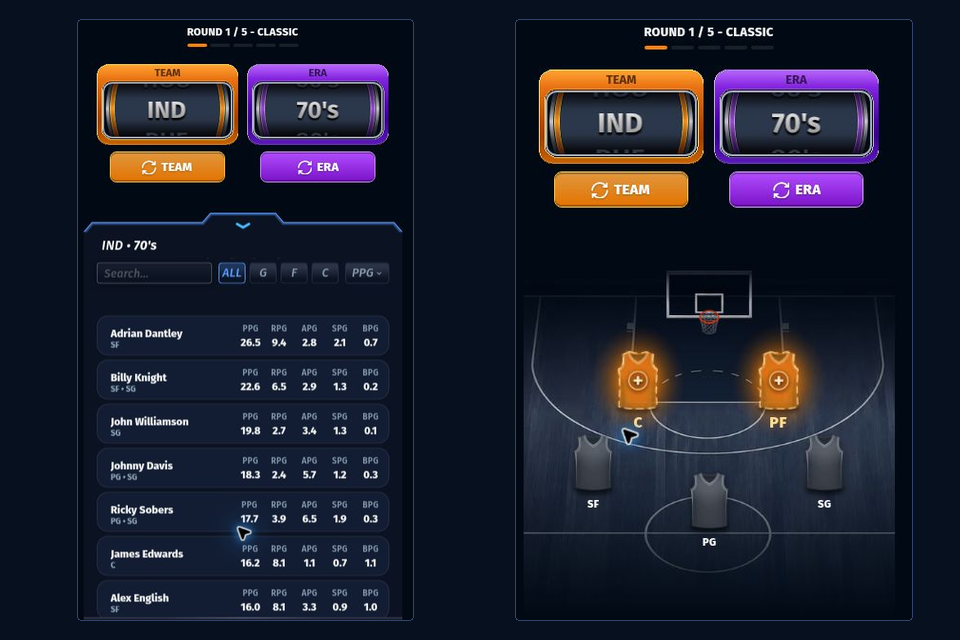
The original 82-0 game can show “Please rotate your device” when a touch device’s game window is wider than it is tall. The important shape is the area inside the window. Turning the physical phone alone does not prove that this area has changed.
The homepage sizes its touch playing area to a portrait shape, including when it is enlarged. Empty space beside that narrower board can be intentional. Judge the view by whether the mode choice and draft controls are visible, rather than stretching the board sideways to fill every edge.
- Try an upright phone view and check the device’s rotation setting.
- Dismiss the search keyboard if it has reduced the usable space.
- If the warning remains in an enlarged view, use Exit fullscreen and inspect the ordinary window.
Start the swipe on the surface you want to move
There are two places to scroll: the outer guide and a list or panel inside the game. A swipe that moves the article is not evidence that the card list is broken. Start within the candidate list when looking for another entry; start beside the game when returning to the page toolbar.
Conceptual touch map
GuideSwipe outside the playing window
Candidate panelSwipe within the listPlacement control · tap once
Use search without losing the roster
Classic’s search field can bring up a keyboard that covers the lower board. Enter the query, inspect the filtered entries, then dismiss the keyboard to check the remaining jobs. If the desired name is absent, clear the query before deciding that a pick is unavailable; Classic explains the filter’s scope.
| Your task | Gesture or control | Confirm afterwards |
|---|---|---|
| Find a lower candidate | Scroll inside the candidate panel | The list moved, while the chosen entry is still identifiable |
| Inspect a searched card | Tap its entry after checking the query | The intended card or offered placement is visible |
| Return to the roster | Dismiss the keyboard using the device’s control | The open jobs and next action are reachable |
| Leave an enlarged window | Use the guide’s Exit fullscreen button | The playing window is back in the article |
More space, with a clear way back
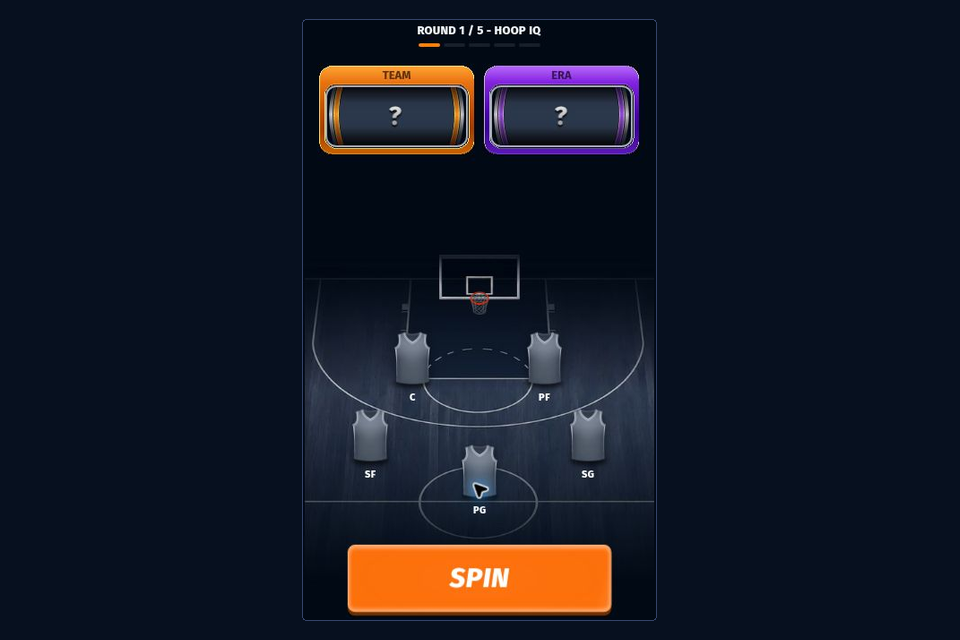
Fullscreen enlarges the existing window. The browser may grant native fullscreen or the guide may use an expanded page view with browser bars still visible. Either way, keep Exit fullscreen reachable. The window handbook explains both exit routes.
If the game itself stops responding, record the last successful tap, the visible message and whether the keyboard was open. Move to Not Working for a failed action. Repeatedly rotating or reopening a responsive draft adds confusion to a problem that may simply be a pending choice.
Settle the view, inspect one entry and confirm the intended roster job changed.
Play on the homepage →