Use the expansion control for a larger view, then return through its exit. Learn which controls belong to the guide, the game and the browser before changing the window.
⛶Enlarge the current window, keep the current task
The homepage toolbar puts Fullscreen beside Reload. Choose Fullscreen when the board needs room. Reload reopens the game address and can restart an unfinished attempt. Open the 82-0 game in the homepage window first, then expand that same window.
Fullscreen · change the viewExit fullscreen · return to the pageReload · reopen the game
🔀One expansion button, two possible views
Press FullscreenA direct click or tap requests a larger view of the game window.
The browser decidesNative fullscreen is used when granted; an unavailable or refused request leads to the page’s expanded view.
Use Exit fullscreenThe same toolbar control brings the window back to the guide.
Existing game window
Native fullscreen
The browser controls this state. It can supply an exit command or gesture, and it may leave fullscreen after another browser action. Support and permission vary, so a full-screen appearance alone is not a reliable test of how you entered it.
Browser controls may remainExisting game window
Expanded page view
The game occupies a larger area within this page. Address bars or system controls can remain visible. The guide’s Exit fullscreen button closes this view; you do not need to reopen the game just because browser chrome is still present.
Conceptual window diagrams, not screenshots of a draft.
↩️Find the exit before you need it
Use Exit fullscreen in the toolbar. It returns the enlarged window to its position in the article.
If native fullscreen stays active, use the browser’s exit control. Escape commonly works on desktop; phone gestures and buttons differ.
When keyboard focus is inside the game, prefer the visible toolbar. A key press handled by the embedded game may not reach the guide’s expanded-view shortcut.
Inspect the same offer after returning. Check the roster or candidate you were considering before making the next pick.
Expansion and exit do not deliberately replace the window’s game address. That is useful when you are midway through a choice, but it is not a promise about the game’s response to every resize. If a new mode screen appears, check whether Reload, navigation or another reset happened.
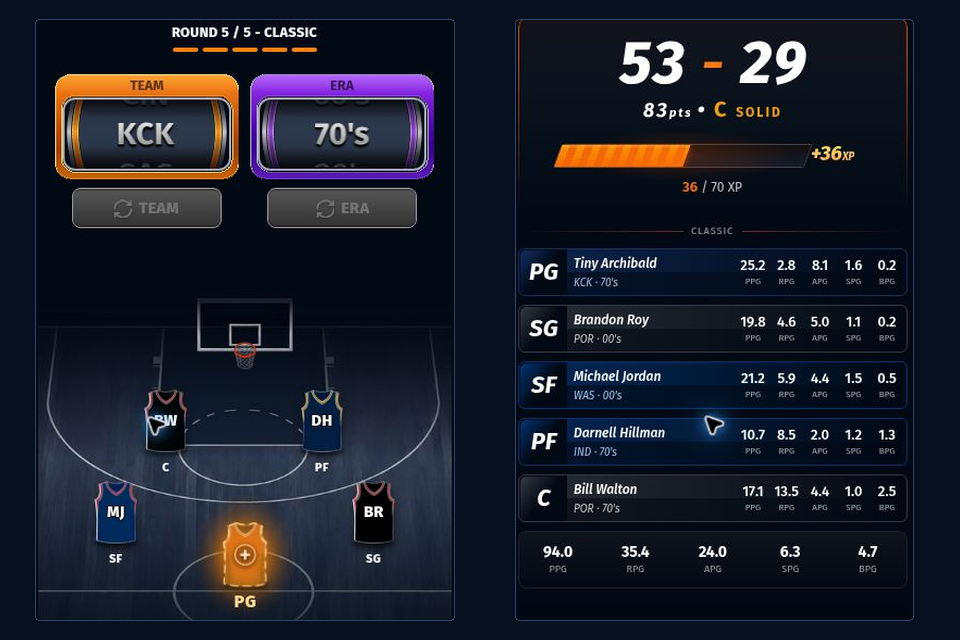
These are the game’s draft and result views. The Exit fullscreen control belongs to this page’s toolbar above the game, rather than to the draft controls pictured here.
🎛️Which control owns the action?
Page, game and browser viewing controls
Control area
It handles
What to inspect
Guide window toolbar
Fullscreen, Exit fullscreen and homepage Reload
Use its exit button to return to the article
Game inside the window
Mode, candidate choices and the returned draft
Confirm the offer or roster is still the one you intended
Browser or device
Native fullscreen permission, exit gestures and available screen area
Use its own exit control if native fullscreen remains active
Each playable alternative has its own expansion toolbar. Its game controls and device layout can differ from the original NBA board. A larger window does not grant access through a blocked connection; use the access guide for that message.
Use the existing window’s expansion button when room would help you inspect the offer.