A poster, a loading screen and an interactive draft show different stages of access. Use the visible symptom and one permitted setup change to make your next check useful.
🔓Start with the homepage game window
For 82-0 game unblocked access, start with the homepage game window and the device and connection you are permitted to use. A working guide page and a working draft are separate checks. The word “unblocked” does not identify another ruleset or guarantee that a managed network permits the game.
▶️Separate the poster from the playable draft
The page and poster appear.
The preview is a local image on the fan site. It can appear before the game document has been requested. Seeing it confirms the guide's assets loaded.
You press Play 82-0.
The homepage then opens the game inside its window. Wait for that document to load and note any browser or managed-policy message shown there.
The draft becomes interactive.
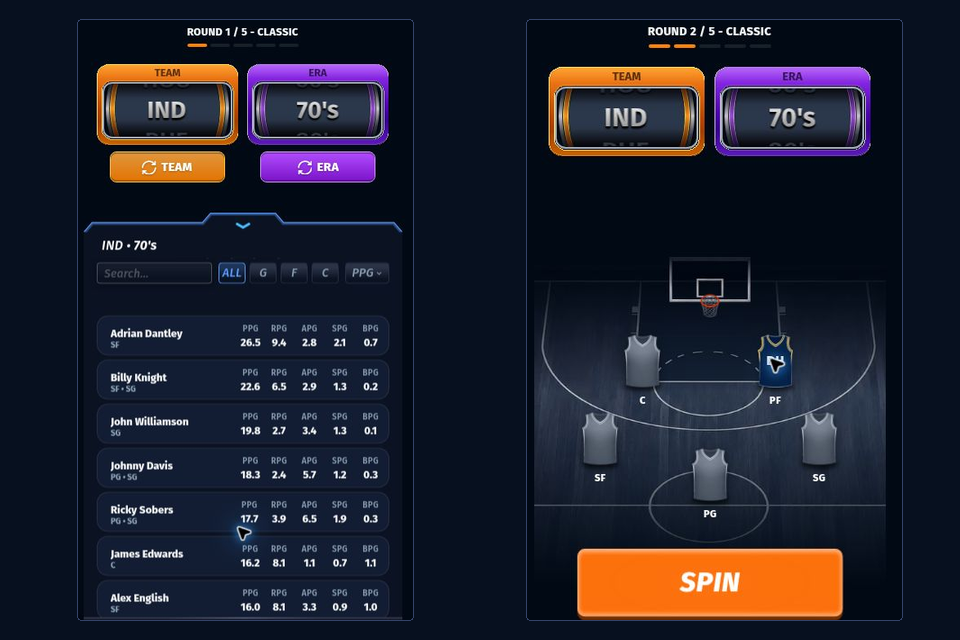
A mode choice or usable draft control is the stronger check. A stationary loading screen can still be waiting for game scripts or requests after the initial document arrives.
🧾Record the visible symptom first
Keep the exact wording of a block or frame message. For a blank area, note whether it appears before or after Play. Record the browser, device and whether the connection is managed so a later test describes a specific setup.
Fullscreen changes the viewing area, so it can help you inspect a message. It cannot override an embedding restriction or grant network access. Repeatedly expanding a blocked window does not isolate a new cause.
This is a genuine loaded Classic interface. Compare this stage with the stage where your setup stops.
🔎What the access clues can tell you
Use the observed boundary to choose the next check
Visible clue
Next useful action
Keep in mind
School or workplace block message
Keep its wording and ask the administrator about permitted access
Changing the guide's label does not change the managed policy
Poster appears; no Play interaction
Check whether the page's controls respond before diagnosing the game connection
The local preview is not the embedded game
Browser refuses to display the frame
Record the frame message and compare an approved browser setup
The game service can set its own embedding restrictions
Loading screen persists
Record the last stage reached and compare one permitted setup variable
Document load does not establish completion of every game request
Only one approved setup works
Keep the working device or profile as a reference for a controlled comparison
Several simultaneous changes conceal which one mattered
🧩Change one allowed condition at a time
Compare browser profiles
If the device permits a fresh profile, test default settings on the same connection. A difference can point toward profile-specific extensions or stored state. Private browsing has its own storage behavior, so describe which context you tested.
Compare approved connections
Keep the device and browser unchanged, then try another permitted connection. A different outcome points toward a connection difference; retain the message so the administrator can investigate the actual access boundary.
The three-line access note
Setup
Device, browser or profile, and managed or personal connection.
Stopped at
Poster, Play, game loading, or an interactive control.
Comparison
The one permitted condition changed, and the resulting message or stage.
That note is useful when asking for access or comparing a permitted setup. Once the draft is interactive, the first-run guide explains the actual game choices.
Open the homepage game window for your next permitted comparison and note the stage reached after Play.